Article
EMIS Patient Arrival Delay: Known Issue & Jayex Workaround
Some practices that use EMIS may see an intermittent issue where a patient checks in using their self check-in system, but EMIS does not show them as arrived straight away. This can mean a patient appears as arrived in your self check-in system, but still looks not arrived in EMIS for a short period of time. This is a known issue, that has been reported to Optum. If you use Jayex Connect Check In there is a process you can follow to continue to operate as normal.
24 July 2026 · Jayex Support
What you may notice
you may see this pattern:
- The patient checks in successfully using self checking
- If you use Connect Check In, the patient shows has arrived in the Connect diary
- The same patient still appears as not arrived in EMIS
- the patient remains waiting until someone notices the mismatch
In some cases the delay can last several minutes
What is causing it
This is a known EMIS issue. Optum previously logged it under reference PRB0048289.
We understand that the issue relates to the way EMIS refreshes the appointment book, and that Optum has treated manual refresh as the current workaround rather than providing a full fix. This is not a failure of your self check-in system, whether it is a Jayex system or any other.
We understand that the issue relates to the way EMIS refreshes the appointment book, and that Optum has treated manual refresh as the current workaround rather than providing a full fix. This is not a failure of your self check-in system, whether it is a Jayex system or any other.
What we can see:
- the patient checks in successfully
- the status updates in Connect
- the message is sent back to EMIS
The issue happens after that point, within EMIS. We cannot see or correct the delay once the message has been accepted and passed on.
Recommended workaround
If you use Connect Check In, you can use the Connect Diary as the live view of patient arrival and patient calling.
On the Diary page, teams can see:
- patient name
- appointment start time
- doctor name
- location
- clinic room
- Arrived status
- detailed row information such as Status, Touch In time and Check In No.
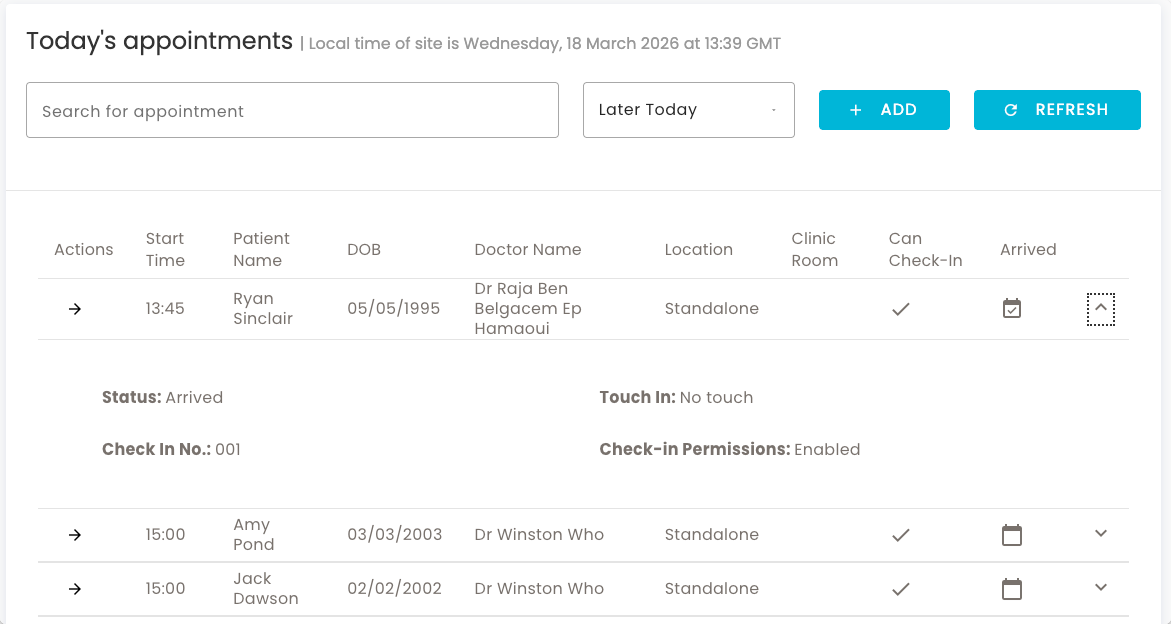
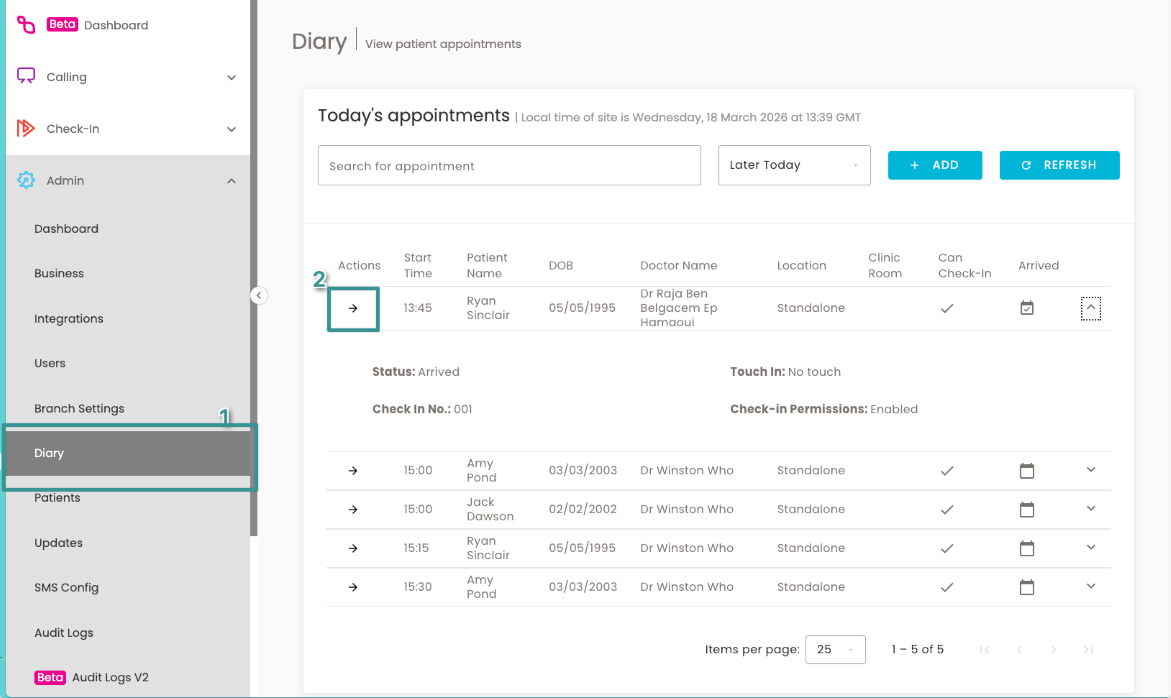
If a patient has checked in, the Diary page will show this even where EMIS has not yet refreshed.
- Admin → Diary
- Action Button
For example, a checked-in patient will show:
Status: Arrived
a Touch In time
a Check In No.
A patient who has not checked in will show:
Status: Booked
Touch In: Not arrived
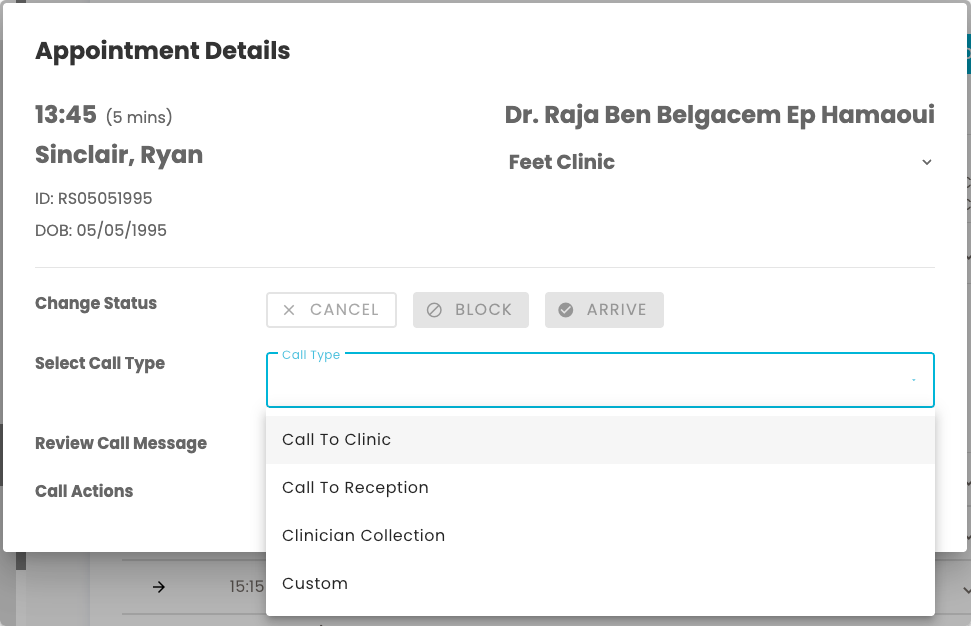
2. Call patients from Connect
If your site uses Jayex Connect Calling, staff can call the patient directly using Connect Calling Feature instead of relying on EMIS to update first.
This keeps patient flow moving even when EMIS is delayed.
QView provides a live view of patients in the waiting queue. Patients can see they are in the system after checking in, and staff can use the screen to quickly check how many patients are waiting.
3. Continue the consultation in EMIS
Clinicians should still open the patient’s appointment in EMIS and start the consultation in the usual way.
Avoid incorrect DNAs
If EMIS has not refreshed yet, the patient may still be present and waiting.
For that reason:
For that reason:
- do not rely on EMIS alone to decide whether a patient has arrived
- check Jayex Connect Diary first
- make sure the consultation is started from the EMIS appointment
What to ask Optum to investigate
If your site is seeing this issue, please raise it with EMIS and quote:
PRB0048289
PRB0048289
It is helpful to provide examples where:
- Jayex shows the patient as arrived
- EMIS does not show the same patient as arrived at the same time